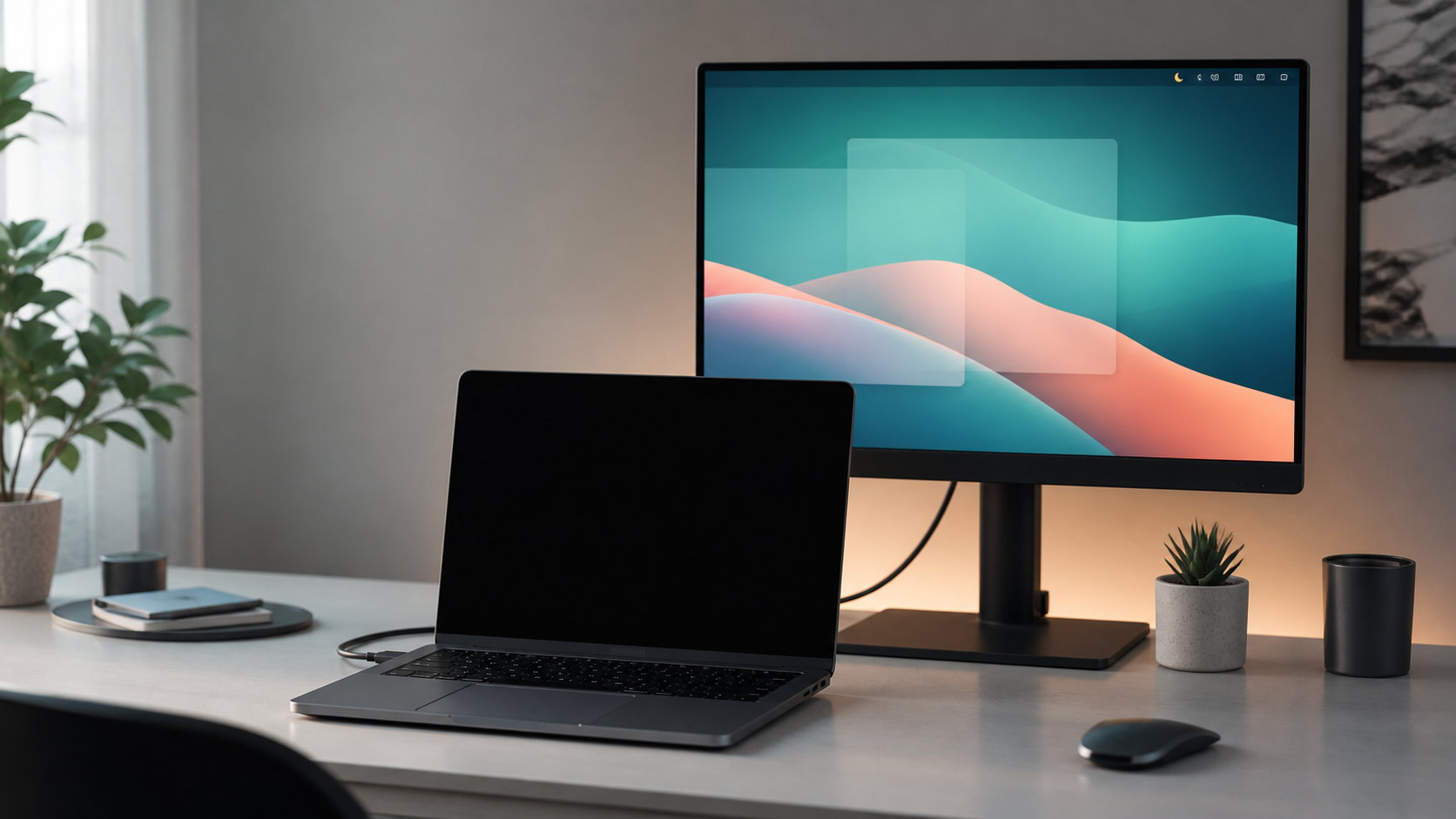
Laptop with blacked-out built-in display in front of an active external monitor.

Mac App Store menu-bar utility

DeskHelper

A quiet menu-bar app for MacBook display control, Finder context menu actions, and local Safe encryption.

Blackout Keep the built-in MacBook display dark while mirroring to an external monitor.
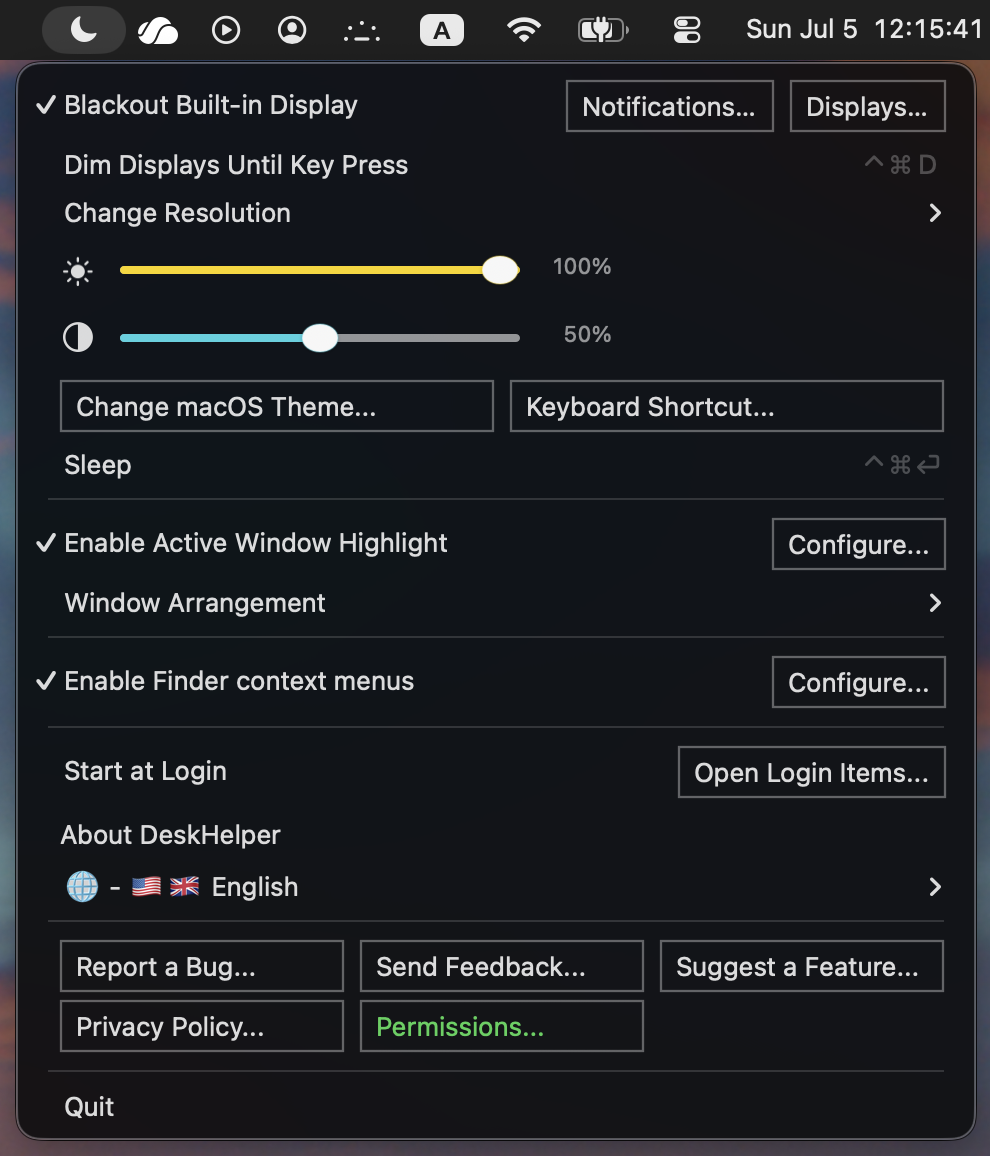
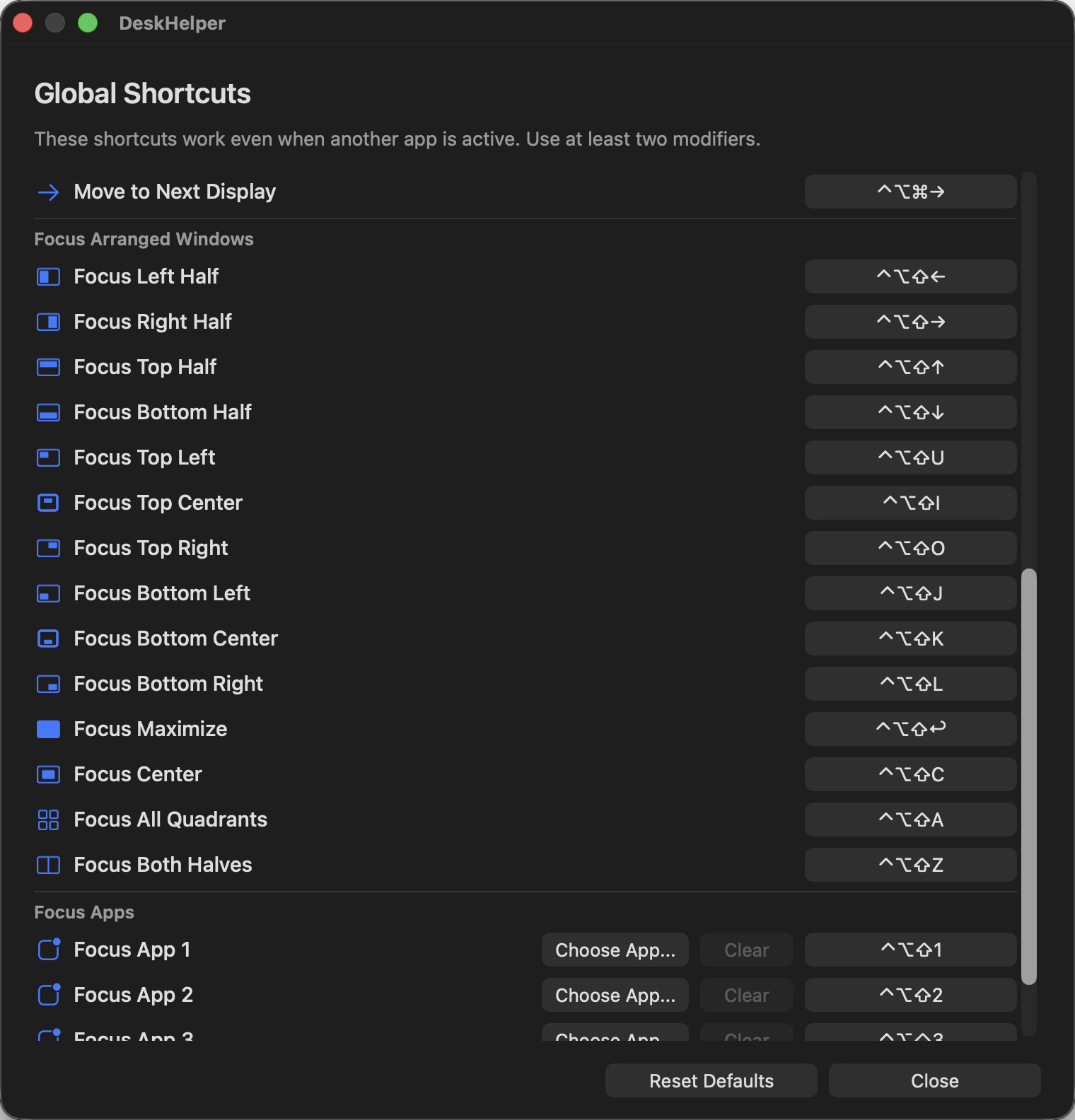
Controls Mirror, dim, sleep, display levels, and shortcuts from the menu bar.
Finder Create files and folders, paste copied items, copy paths, open Finder selections, and encrypt or decrypt local Safes.
Mac App Store edition Finder context menus Local Safes No account
What is it?

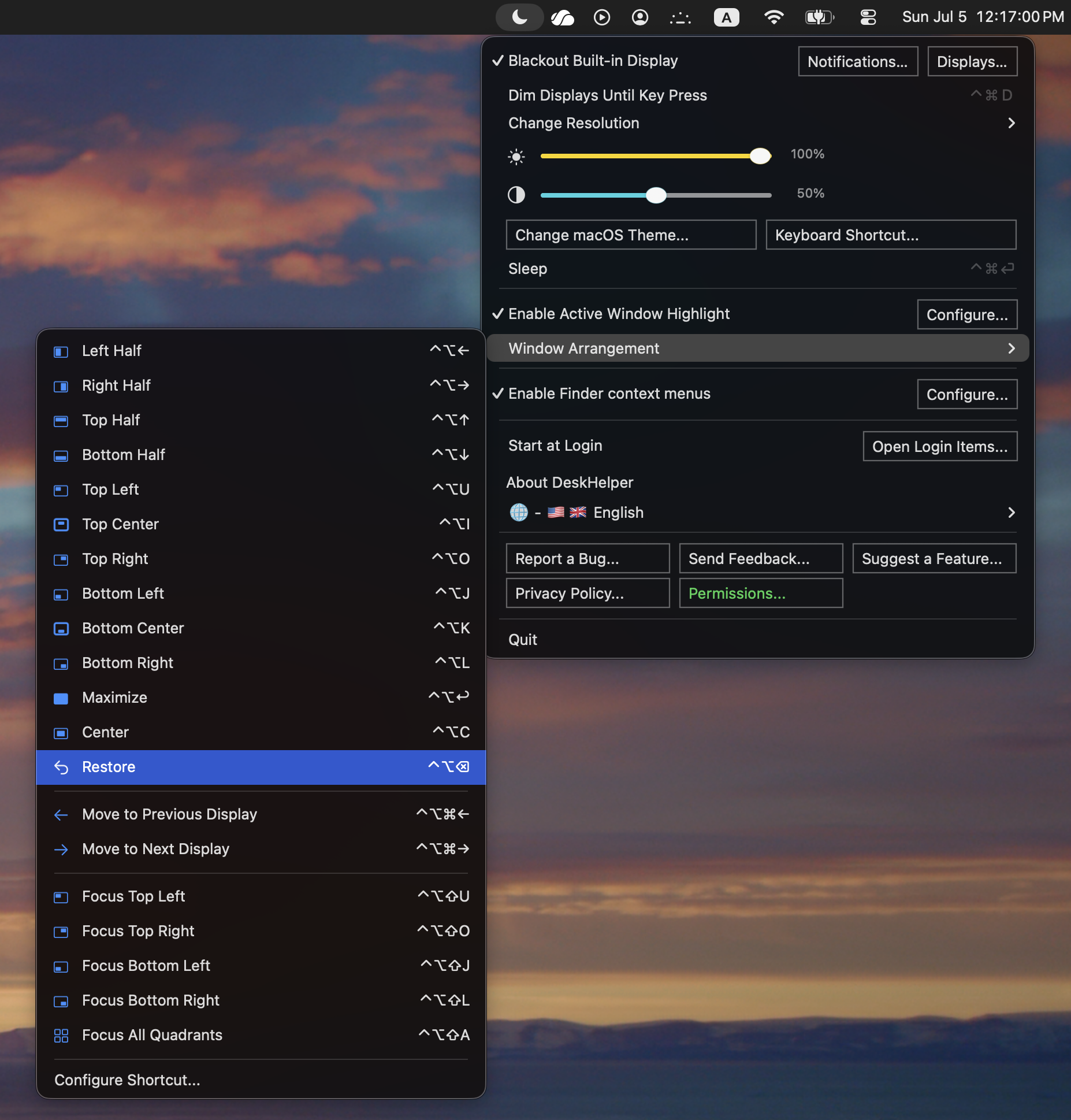
Everything it does.

  • Auto Blackout Keeps the built-in MacBook display dark while it mirrors an external display.
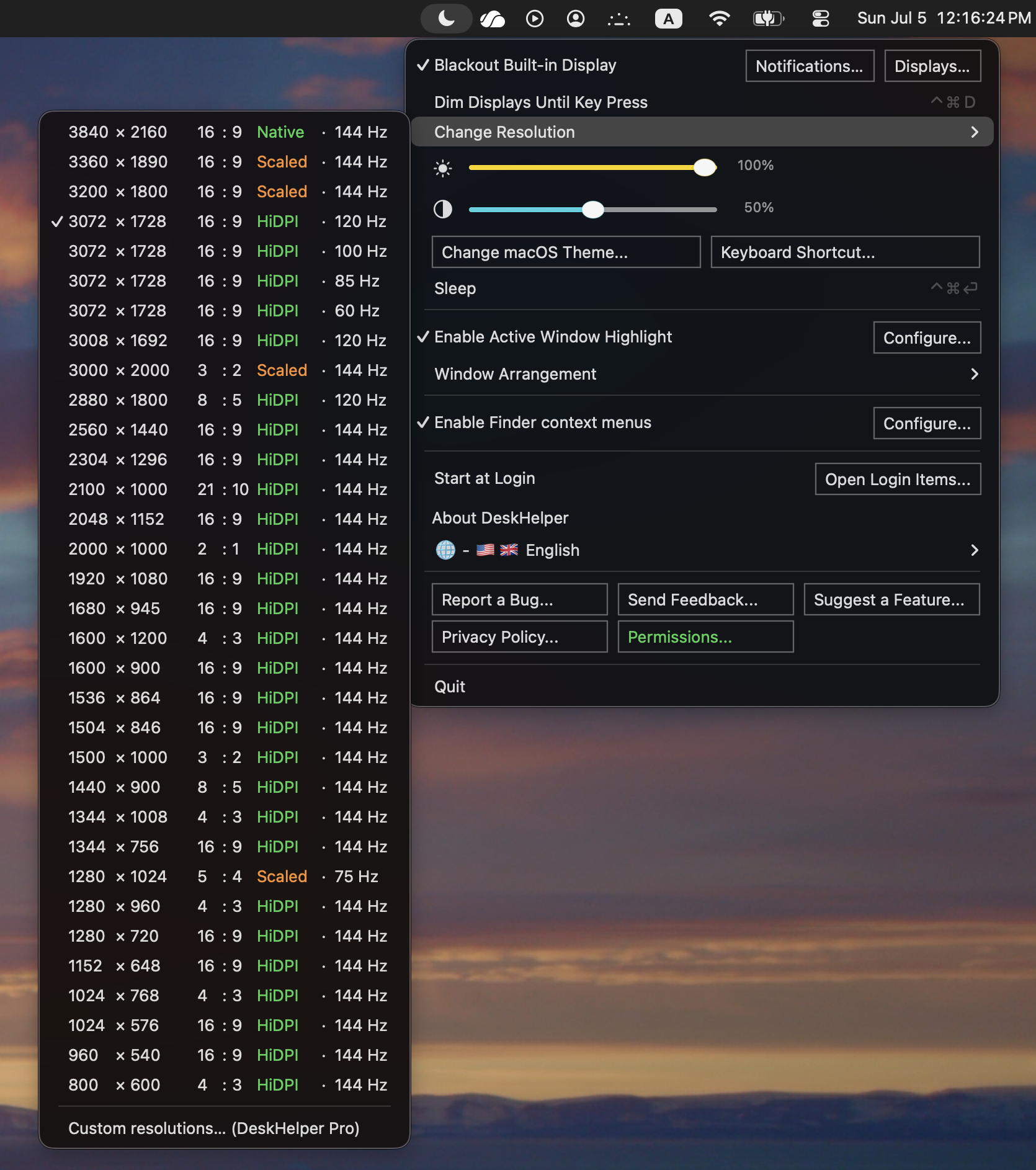
  • Display controls Switch mirroring, dim displays until key press, sleep the Mac, and adjust display brightness or contrast from the menu bar.
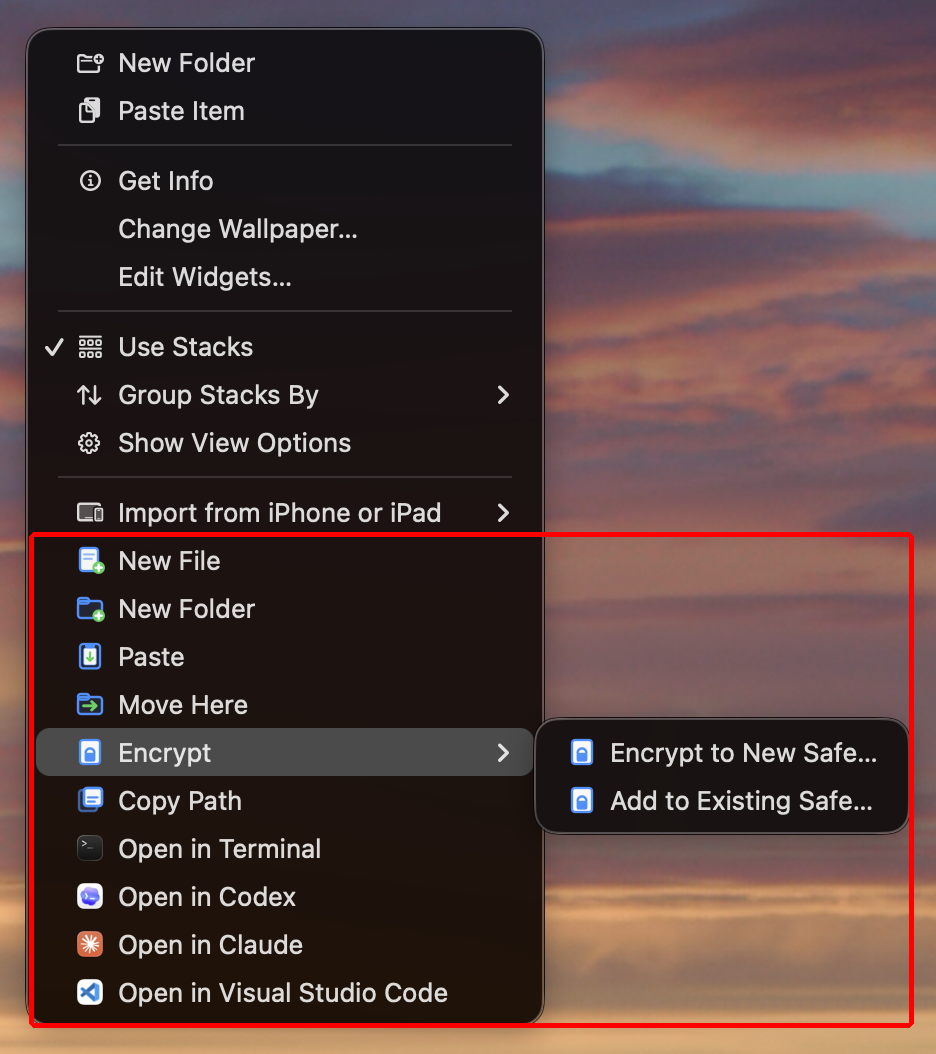
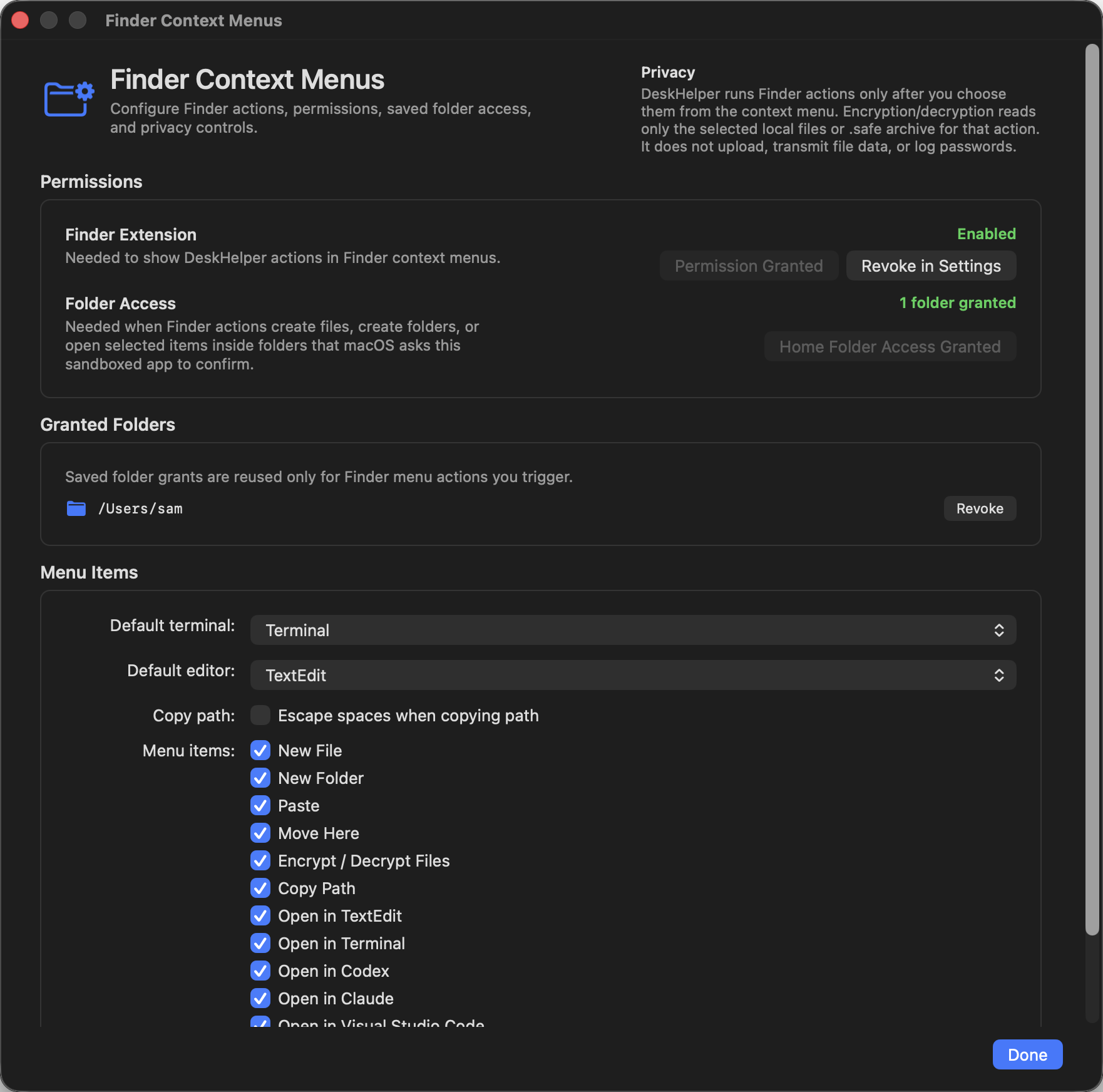
  • Finder context menus Use New File, New Folder, Paste, Copy Path, and Open in TextEdit, Terminal, Codex, Claude, VSCode, or another compatible app from Finder.
  • Safes Encrypt selected local files or folders into a single .safe file, add to an existing Safe, or decrypt a Safe back into a folder.
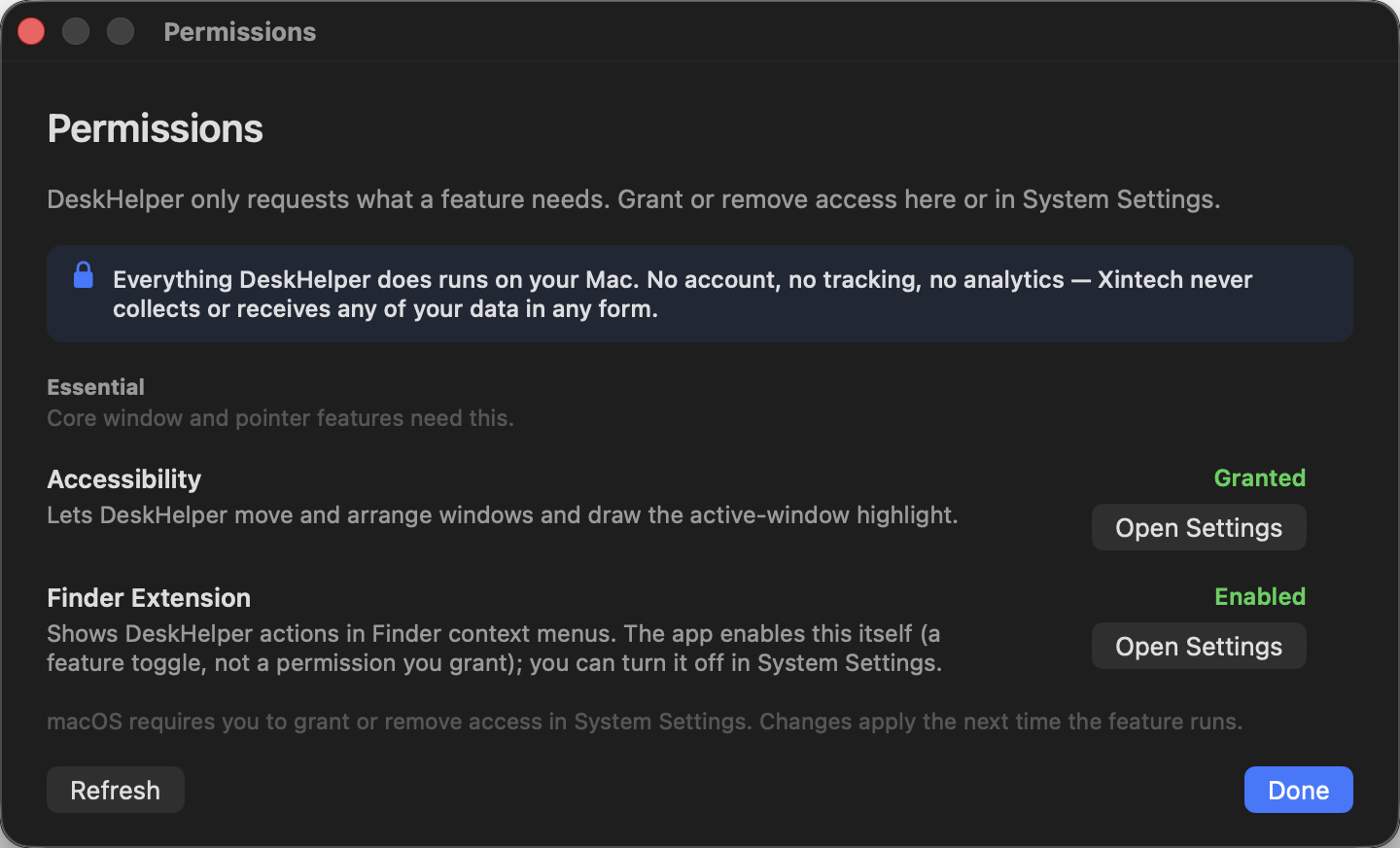
  • Privacy basics No account, no analytics, no Dock window, and no upload for Finder or Safe actions.
Finder context menu highlighting DeskHelper actions such as New File, New Folder, Paste, Copy Path, Open in apps, and Encrypt or Decrypt Safes.
What's good about it?

Less fuss around displays and files.

  • Only blacks out when it should dark when mirrored, normal when the MacBook screen is part of your workspace
  • Fast everyday actions switch mirroring, dim until key press, sleep, adjust display levels, create files and folders, paste copied items, copy paths, open Finder selections, and encrypt Safes from context menus
  • Local-first by default settings stay on your Mac, feedback opens as a reviewable email draft, and there is no analytics SDK
For desk setups made for MacBooks that spend real time connected to an external display
For Finder work turn the current Finder folder into the new file, new folder, paste, path, editor, terminal, Codex, Claude, VSCode, or Safe action you meant to take
For simplicity the main experience is the menu bar, with focused dialogs only when you configure features
  • Install download DeskHelper from the Mac App Store once the listing is available
  • Update receive updates through the Mac App Store
  • Configure enable the Finder extension in macOS settings if you want context menus; grant folder access only when a Finder action needs it
macOS 13.0 or later Apple Silicon + Intel
  1. 1 Open the Mac App Store listing.
  2. 2 Install DeskHelper.
  3. 3 Launch it from Applications.
Mac App Store link coming when the listing is ready.
Mac App Store coming soon Support Privacy EULA