 XTimers
English · Mac workflow
Name the work.
See where the time went.
Create separate timers for Design, Research and Writing. Start the one you are working on, pause when you change activities, and review the recorded sessions at the end of the day.
Begin with three names you recognize.
Make a set for the work
Open Task Sets from the set name near the top of the main window. Enter “Studio” and choose Create. Select that set before adding its tasks.
Add your timers
Use the + control to add a Timer named “Design.” Repeat for “Research” and “Writing.” Choose Start manually while you are setting them up.
Record the activity you are doing
Start Design when you begin designing. Pause it when you stop, then start Research or Writing as appropriate. Check that a timer has actually stopped before leaving it behind.
You can also add a countdown for a fixed focus block or world clocks for other locations. They serve different purposes from a count-up work timer.
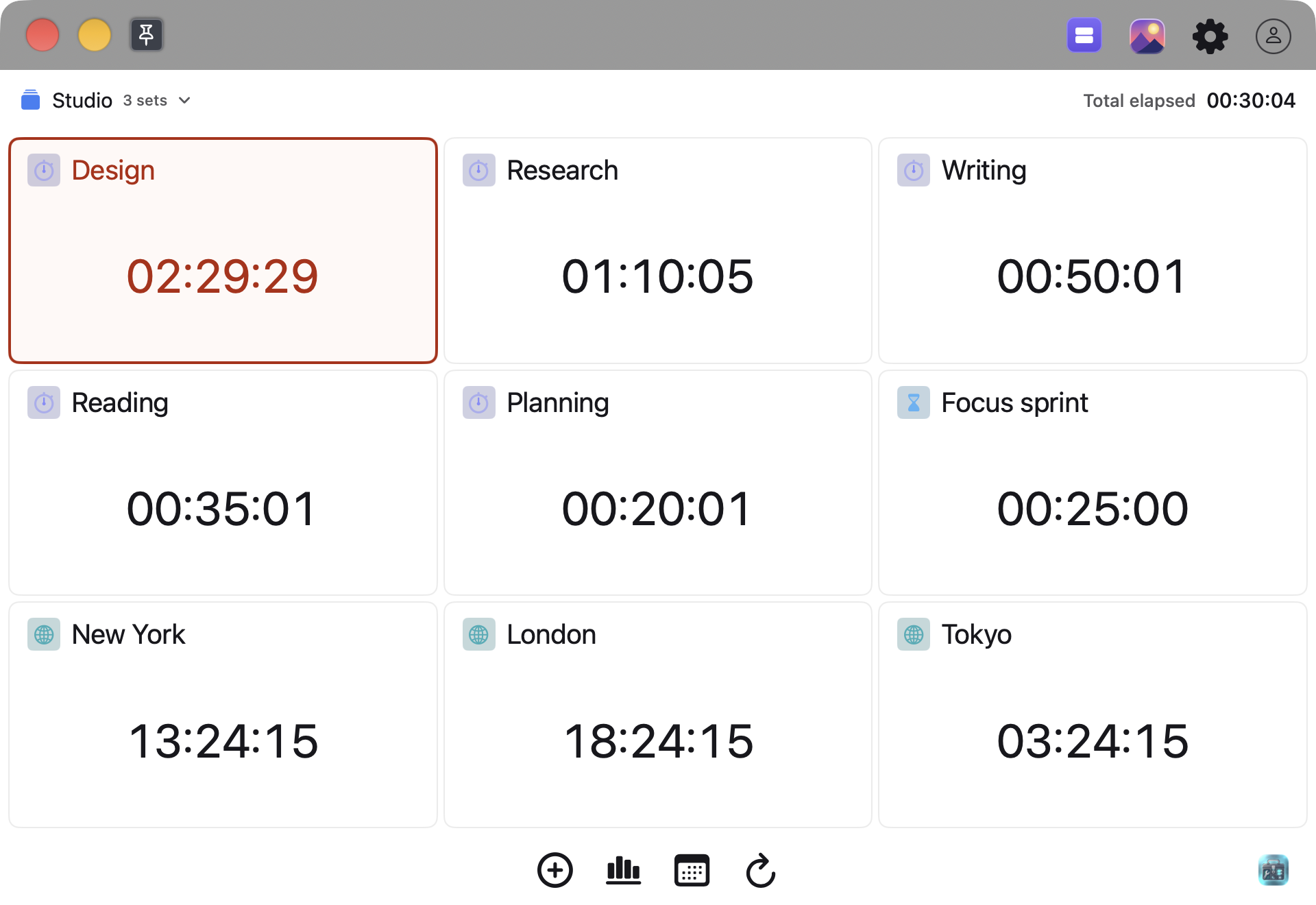
Start small, then add only the tasks and clocks you use. The example readings are sample data, separate from the report below.
Turn the day into a useful record.
Open Reports with the bar-chart control in the main window or from the menu bar. Select the task set you want to review, choose Today or another time range, and begin with Sessions.
Look at when each activity began and ended. Then compare totals to see how the recorded time was distributed. A current timer reading and the sessions within a date range answer different questions.
| Question | Report view |
|---|---|
| When did I work? | Sessions |
| How much time did I record? | Daily Totals |
| What are the timer readings now? | Current Readings |
Use Copy Summary for a short record. Use the report’s Export menu to choose an available file format.
Local report review and file export do not require emailing a report. Email delivery is an online account feature; use it only when its requirements are satisfied.
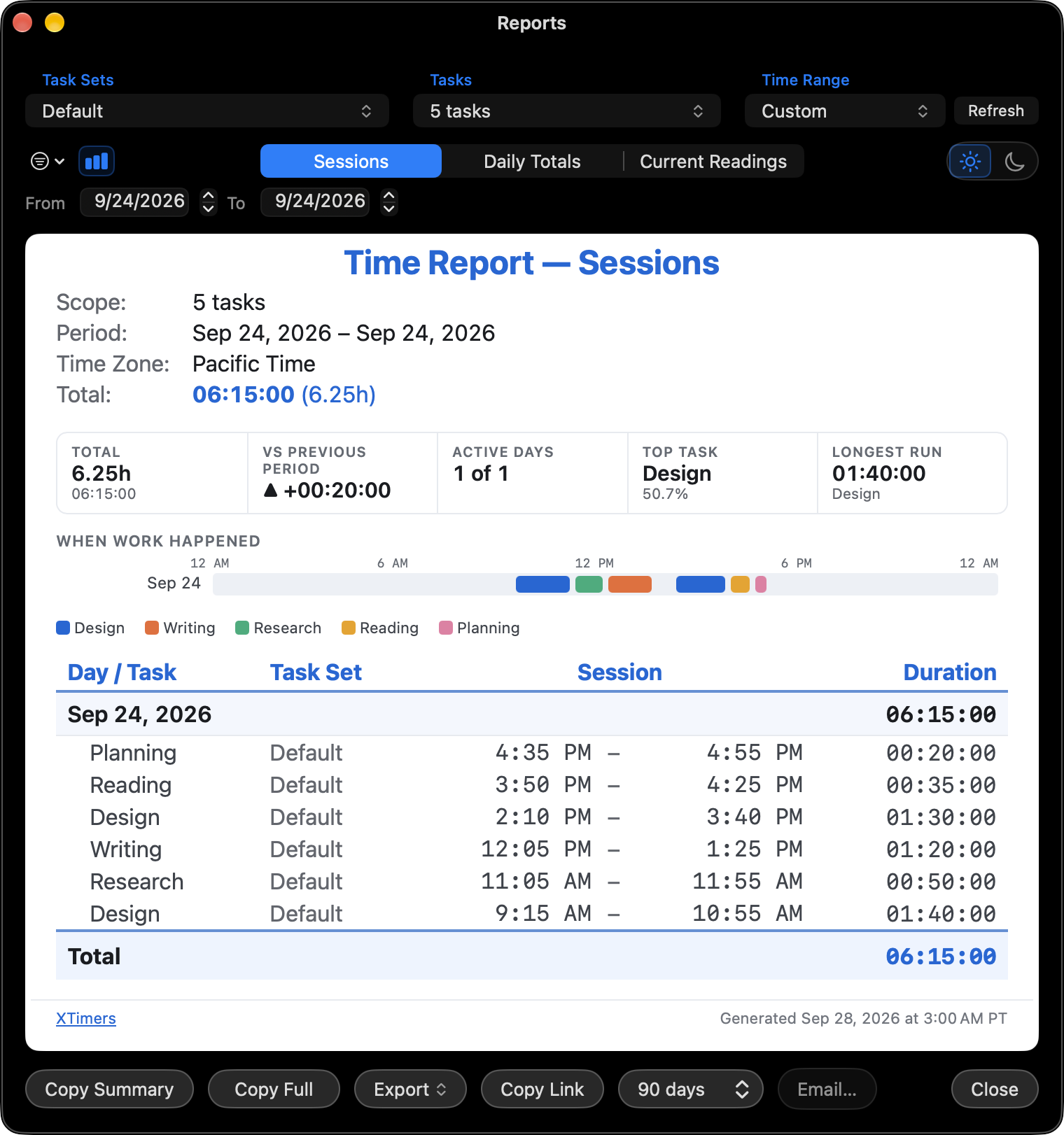
The report shows a separate sample day in the Default set. Its timeline and totals illustrate the display; they are not evidence of measured productivity gains.
Keep a setup worth repeating.
For a recurring kind of work, open Task Sets and choose Save Current under Templates. Name the template, then use Create Set when you want another set based on it.
Templates copy active tasks and skip scheduled email/SMS reminders. Treat a template as a starting setup; it is not a backup of all timer history or account data.
Switching task sets pauses running timers by default. Choose Switch, Keep Running only when you intend the previous set to continue in the background.
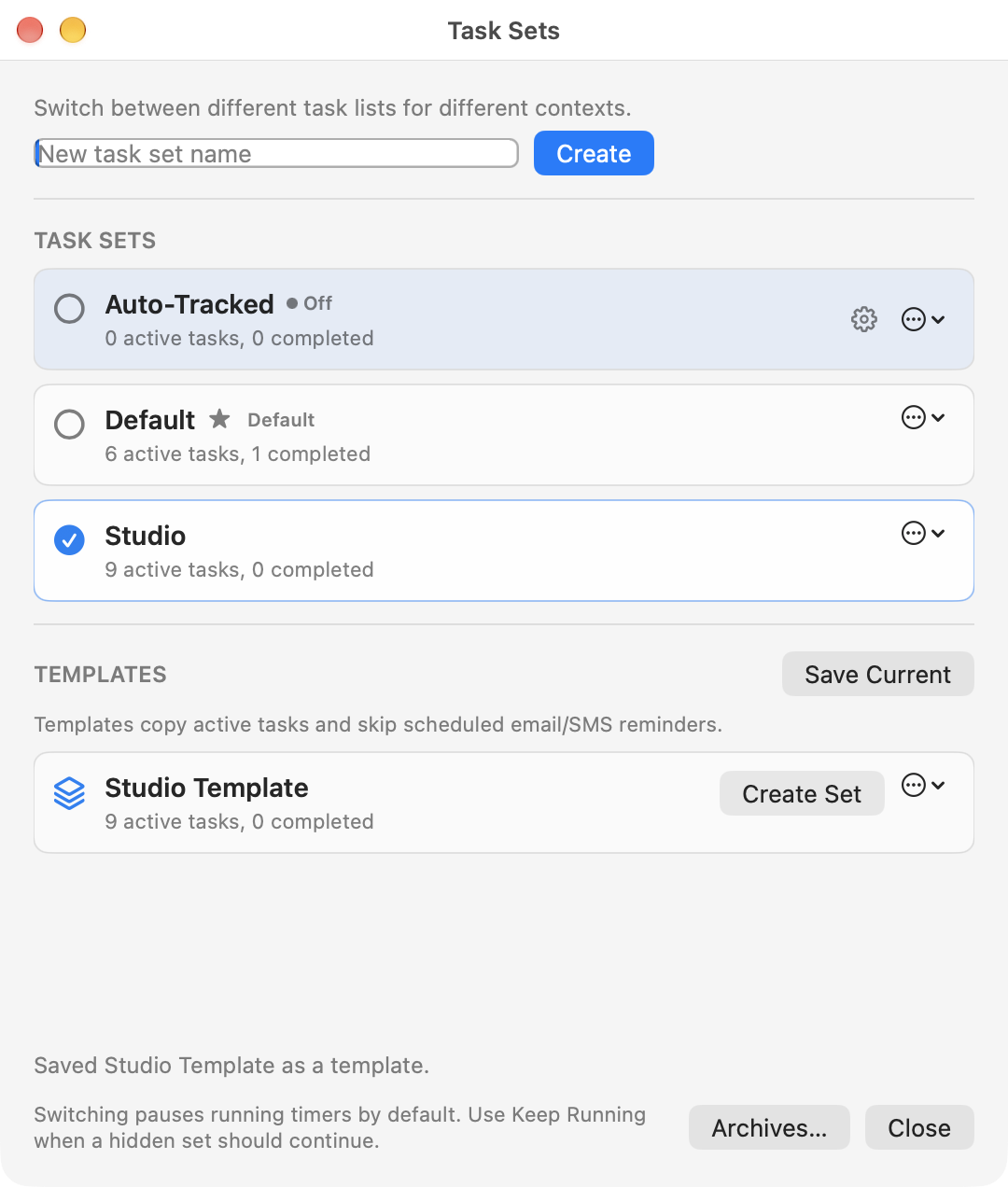
Sets separate contexts; templates help recreate a useful collection of tasks.
Keep the record useful.
- Name activities consistently
- “Research” is easier to recognize later than an unnamed timer. Use separate names for work you want to compare.
- Be deliberate about overlap
- Several timers can run together. Overlapping task durations are not the same as elapsed wall-clock time, so avoid overlap when you mean to account for one activity at a time.
- Check the report scope
- The selected tasks, task sets, time range and report view change what the report shows. Confirm them before copying or exporting.
- Core use is local
- Local timing works offline without an account. This manual workflow does not require automatic app tracking, synchronization or online delivery.
Give your next work session a name.
Start your next task in XTimers for Mac.
Updated September 28, 2026. Covers XTimers 3.5.0. Screenshots use sample data.