 XTimers
English · Mac workflow
A timer you can see
while you work.
Keep “Planning” beside your Mac’s status icons while you write, design or research. Open its menu when you need to start or pause, then return to your work.

From task name to menu bar.
Create one named timer
In the main XTimers window, choose the + control. Add a Timer for counting up, and give it a name such as “Planning.” Use Start immediately if you are ready to begin.
For a fixed amount of time, choose a countdown instead and enter its duration.
Show the reading
Open Settings and enable Show menubar status. Start the task you want to follow, then switch to your work app. XTimers shows the task’s name and reading in the menu bar.
Pause where you are
Click the XTimers menu-bar item. Choose the named task’s Pause or Start action to control it. The same menu gives you access to other tasks and Reports.
Pause a work timer when you stop that activity so its reading reflects the time you intend to record.
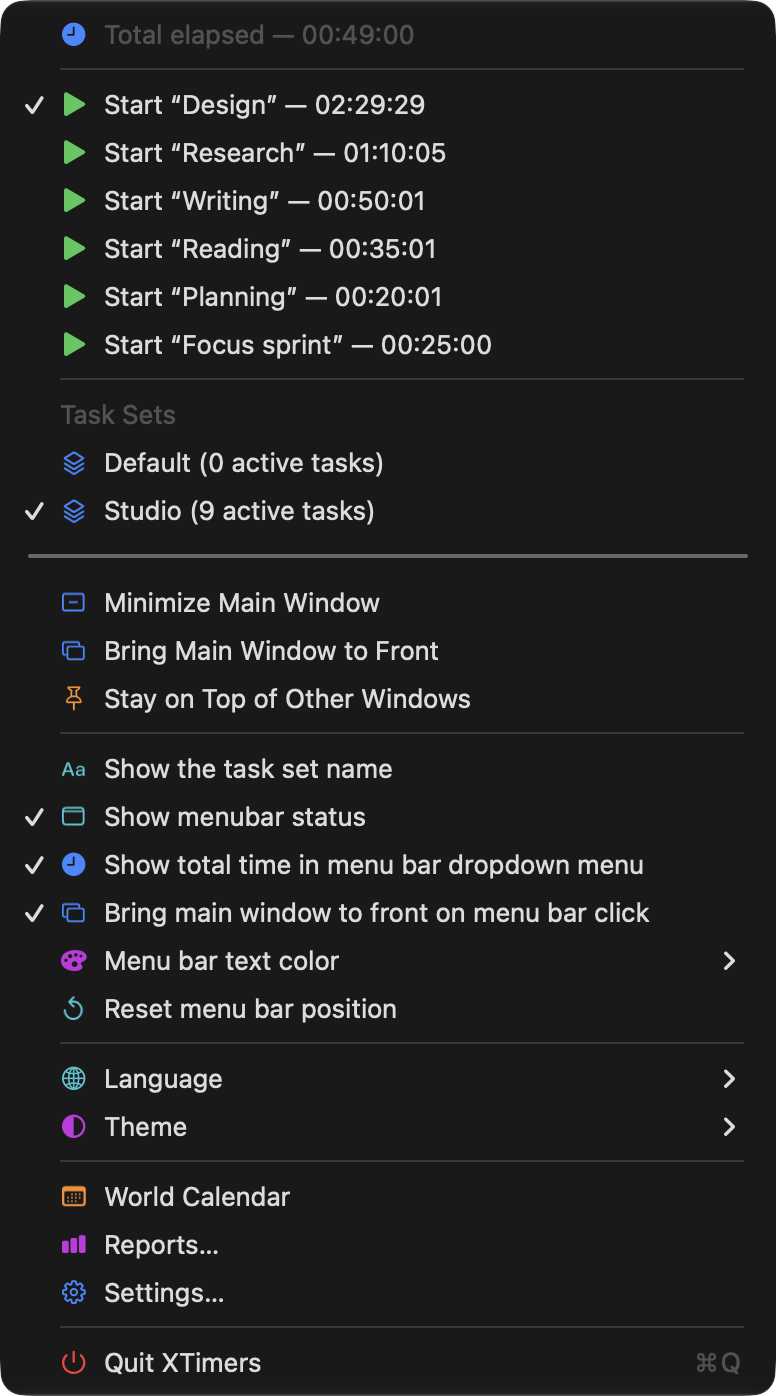
Each task has its own control. The checked Design row is selected; the Start label tells you that it is currently paused.
Choose what stays visible.
Use a short, recognizable task name so the menu-bar reading is easy to scan. Keep the main window available when you want a larger view of several tasks; use the menu bar for a quick check.
The menu can also show the task-set name and change the menu-bar text color. Turn off Bring main window to front on menu bar click if you want to use the menu while your work app stays in front.
XTimers keeps the last focused task’s reading visible after an ordinary pause and adds a pause indicator.
Good to know before you begin.
- Keep XTimers running
- The menu-bar item belongs to the running Mac app. Quitting XTimers removes it. Minimizing a window and quitting the app are different actions.
- Core timing works offline
- You do not need an account for local timers. Optional synchronization and online delivery features have separate account and connection requirements.
- A countdown is a timer
- A 25-minute countdown is useful for a focus block. It does not, by itself, establish an automatic work/break routine or block other apps.
- Review the work afterward
- Use Reports to review recorded sessions, rather than treating one current menu-bar reading as the whole day.
Keep your next task within sight.
Find XTimers for Mac on the Mac App Store.
Updated September 28, 2026. Covers XTimers 3.5.0. Screenshots use sample data.